How to Make a Bulin 47 AI Video: One Photo, 4 Steps
How to make a Bulin 47 AI video in 4 steps: one photo in, a 15-second freestyle out. Costs and FAQ.
Last updated: 2026-10-12
Making a Bulin 47 AI video takes four steps: open the studio, upload one clear photo of yourself, press generate, and download the finished 15-second clip about 5 to 10 minutes later. The studio already knows the scene — the red-lit Madrid doorway, the dembow beat, the crowd — so the only creative decision you make is which photo to use. What comes out is a watermark-free 9:16 MP4 with the original audio, ready for TikTok, Reels, and Shorts.
This guide walks through each step with real examples, the photo rules that actually matter, what the video costs, and the mistakes to avoid. If you want the background first — where the trend came from and what the tools behind it do — start with what Bulin 47 AI is, then come back here to make one.
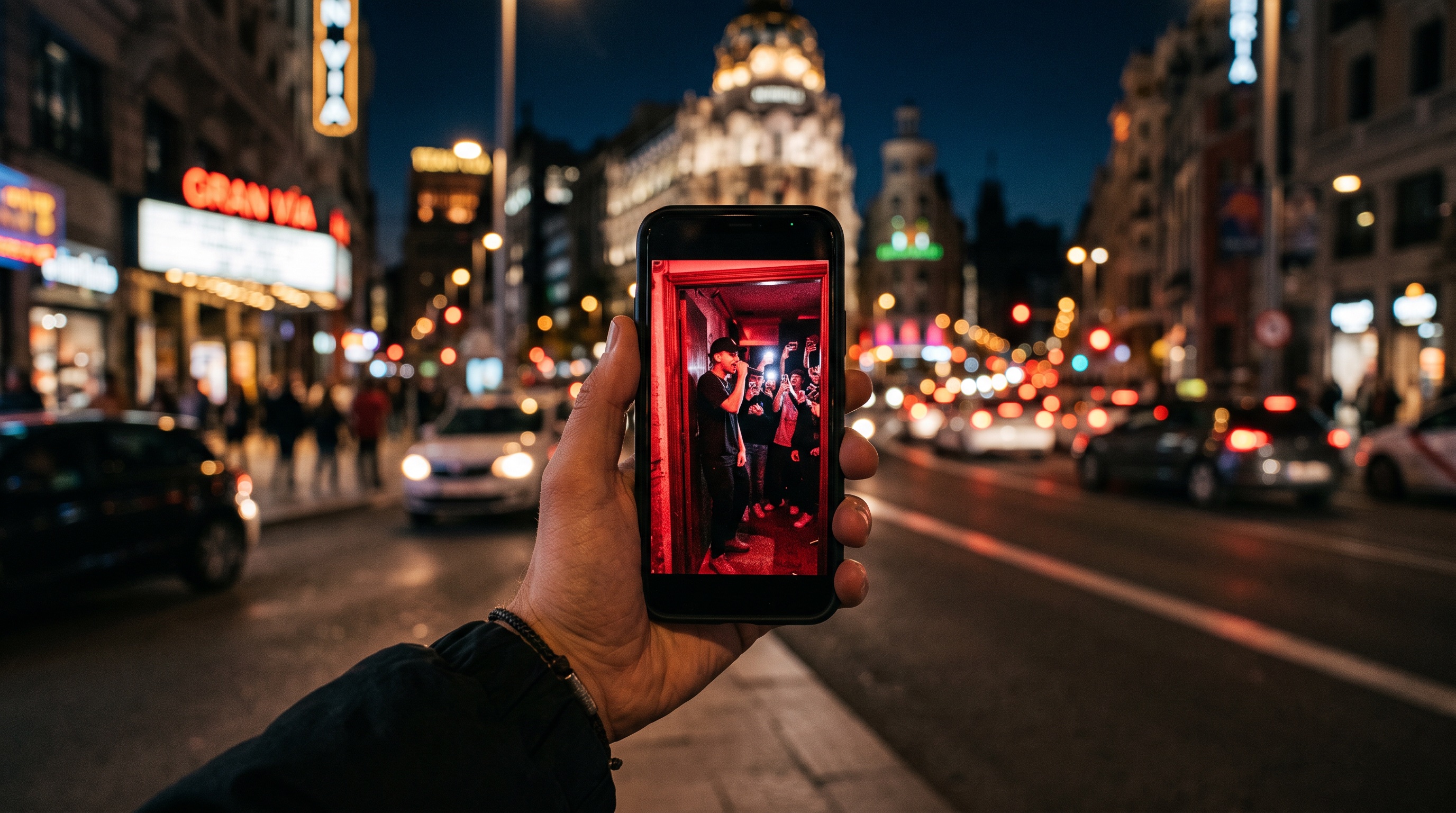
What you are making
The target is the viral freestyle clip: one performer in the doorway, red light washing over the frame, a portable speaker on the ground, a crowd filming on phones. Here is the original moment the whole trend remixes:
The original freestyle outside a Gran Vía restaurant — your photo goes where the performer is standing.
A generated video keeps everything except the performer's face and head, which come from your photo. The motion, the camera work, and the dembow audio are locked to the original clip. That is why every remix feels like the same scene. It also tells you what the model needs from you: a clean, single-person photo it can build that face from.
What you need before you start
Two things, and the first one matters much more than the second:
- One photo. Clear, well-lit, face fully visible. Step 1 covers exactly what works.
- Credits. The studio runs on one-time credit packs starting at $9.90 — no subscription. One credit makes one video.
That is the whole list: no app install, no prompt to write, no reference clip to hunt down.
Step 1: Pick the right photo
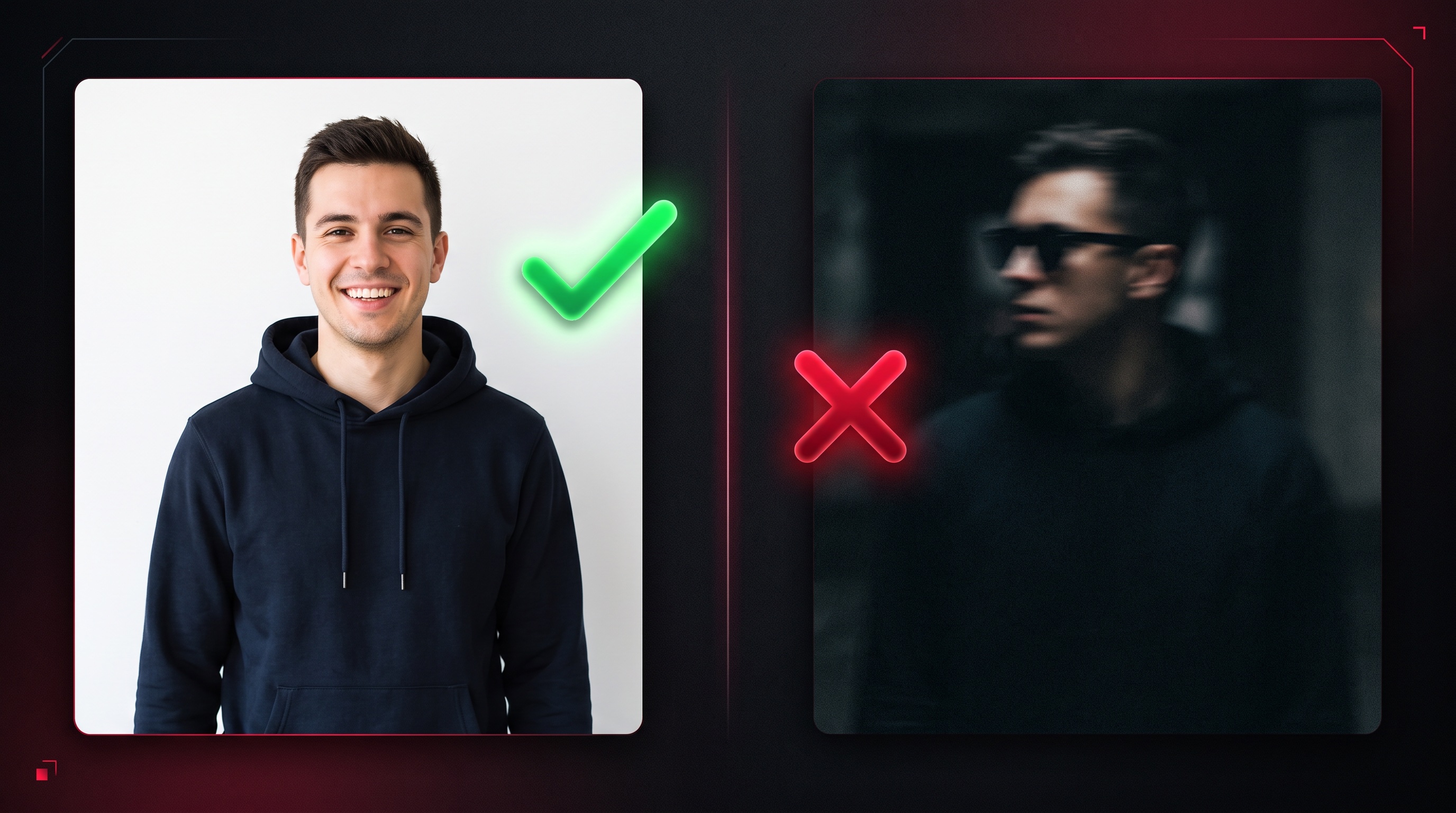
The model builds its version of you entirely from the photo, so photo quality sets the ceiling on video quality. A photo that passes this checklist:
- Face fully visible and front-facing. No sunglasses, no heavy profile angle, nothing covering the face.
- Sharp and well-lit. Daylight or bright indoor light beats a dim bar shot every time.
- Waist-up or full-body. The outfit in frame is the outfit your video wears — plan accordingly.
- One person per photo. The preset swaps in a single performer, so a group shot gives it nothing unambiguous to work with. Crop to one person or take a fresh solo photo.
- Yours to use. Your own photo, a consenting friend's, or your pet. Public figures and celebrities are off-limits.
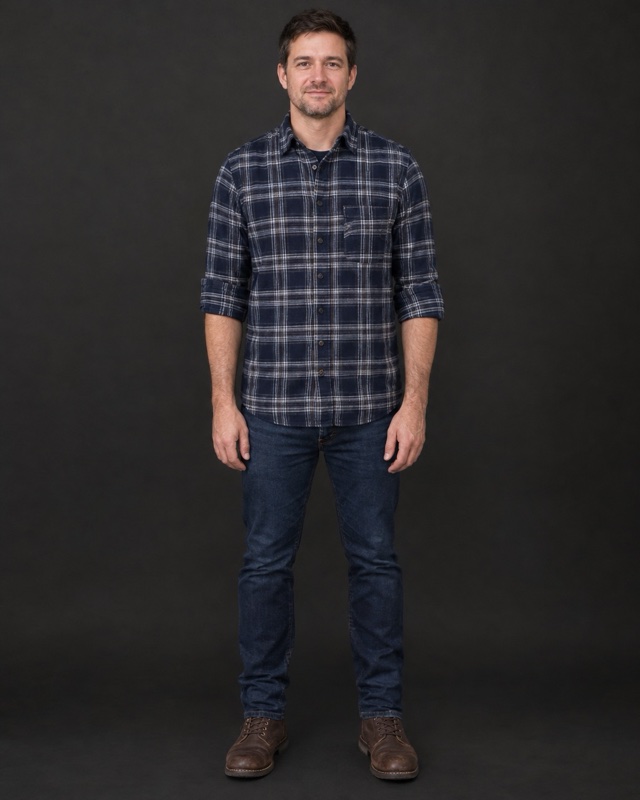
To see how much the input matters, here is a real generation pair from the studio. This photo is everything the model received:
And this is what came back a few minutes later:
Step 2: Open the studio and upload
Head to the Bulin 47 AI studio and upload the photo. There is no scene setup: the doorway preset, the motion reference, and the audio are fixed by the studio, so the upload is the only input you provide. Pets work too. This golden retriever portrait is all it took:
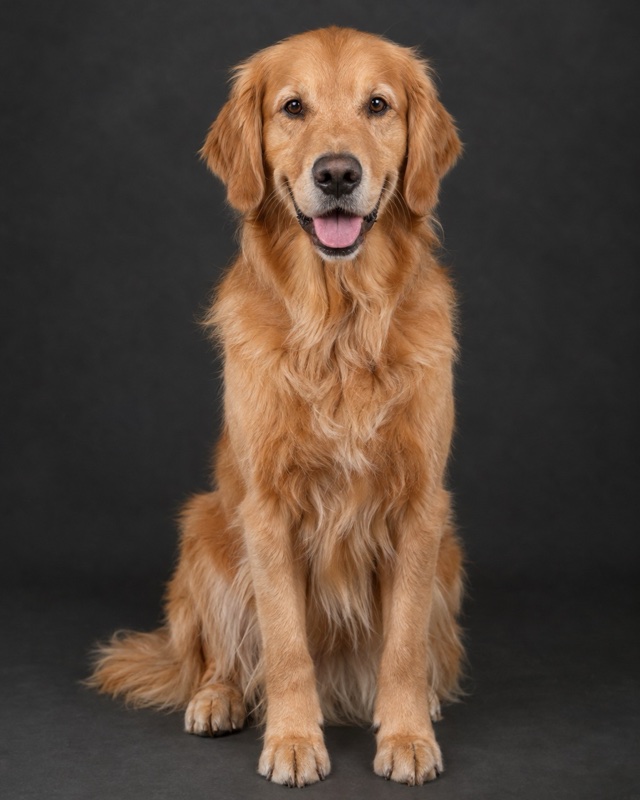
The Doorway Dog Remix — a pet photo in, a sunglass-wearing dog nodding to the dembow beat out.
Step 3: Generate
Press generate and pick a resolution: HD renders faster and is plenty for a first attempt; 2K holds up better if you plan to zoom into the frame or repost at larger sizes. Generation takes 5 to 10 minutes, and the studio shows live queue progress while it runs — you do not need to keep the tab open.
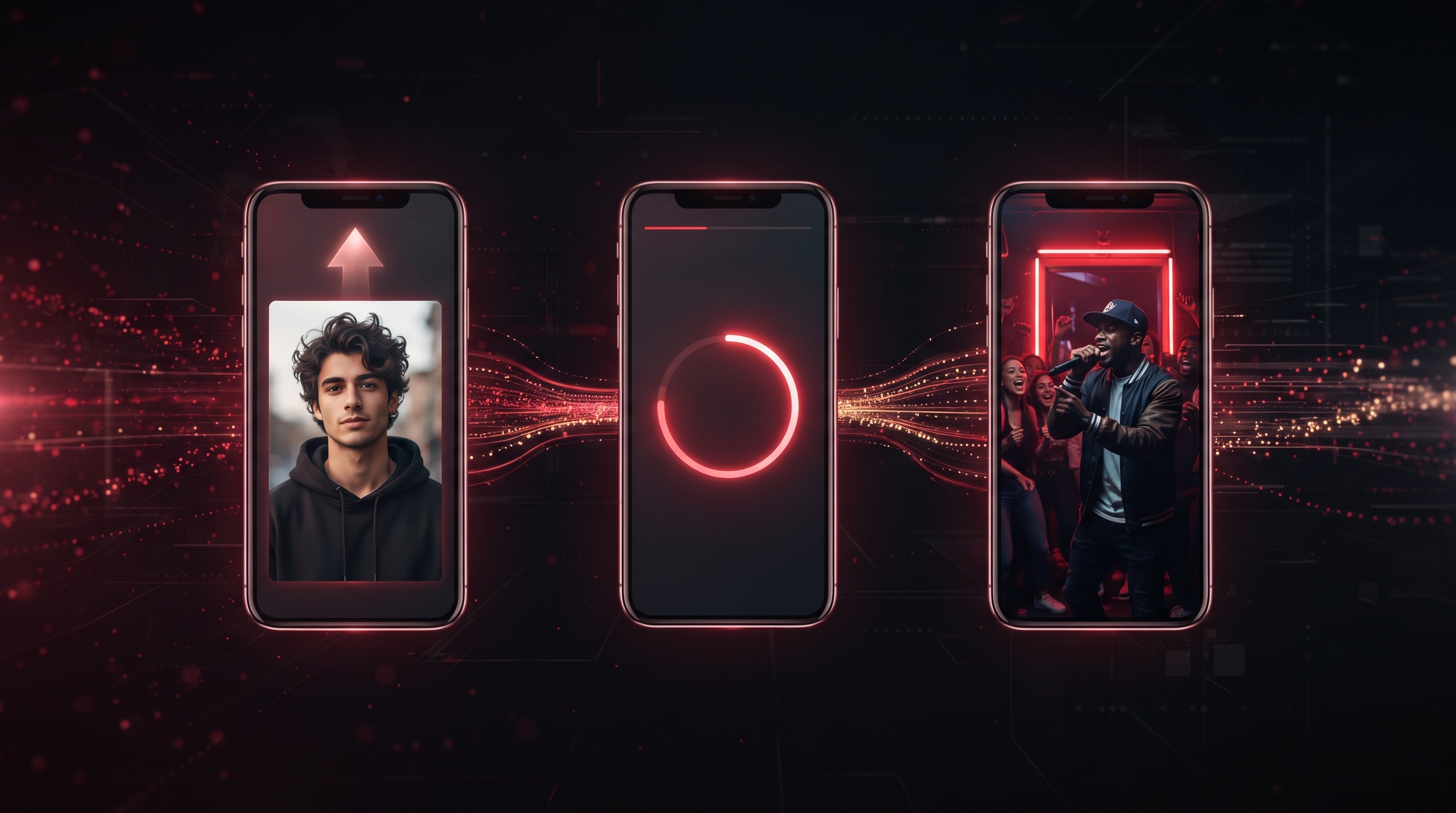
Two things are locked during the render, and they are the reason the output looks right: the motion (the head nods and gestures from the original freestyle) and the audio (the dembow beat and street noise). Unlike prompting a general video model, there is nothing to describe and nothing to drift — every run lands in the same doorway with the same beat.
Step 4: Download and post
When the render finishes, the video is saved to My Videos and you get three ways to use it:
- Download the MP4. 15 seconds, 9:16 vertical, no watermark — it posts as-is.
- Share the link. Every generation gets a public share page friends can open in a browser, no account needed.
- Re-watch later. My Videos keeps your history.
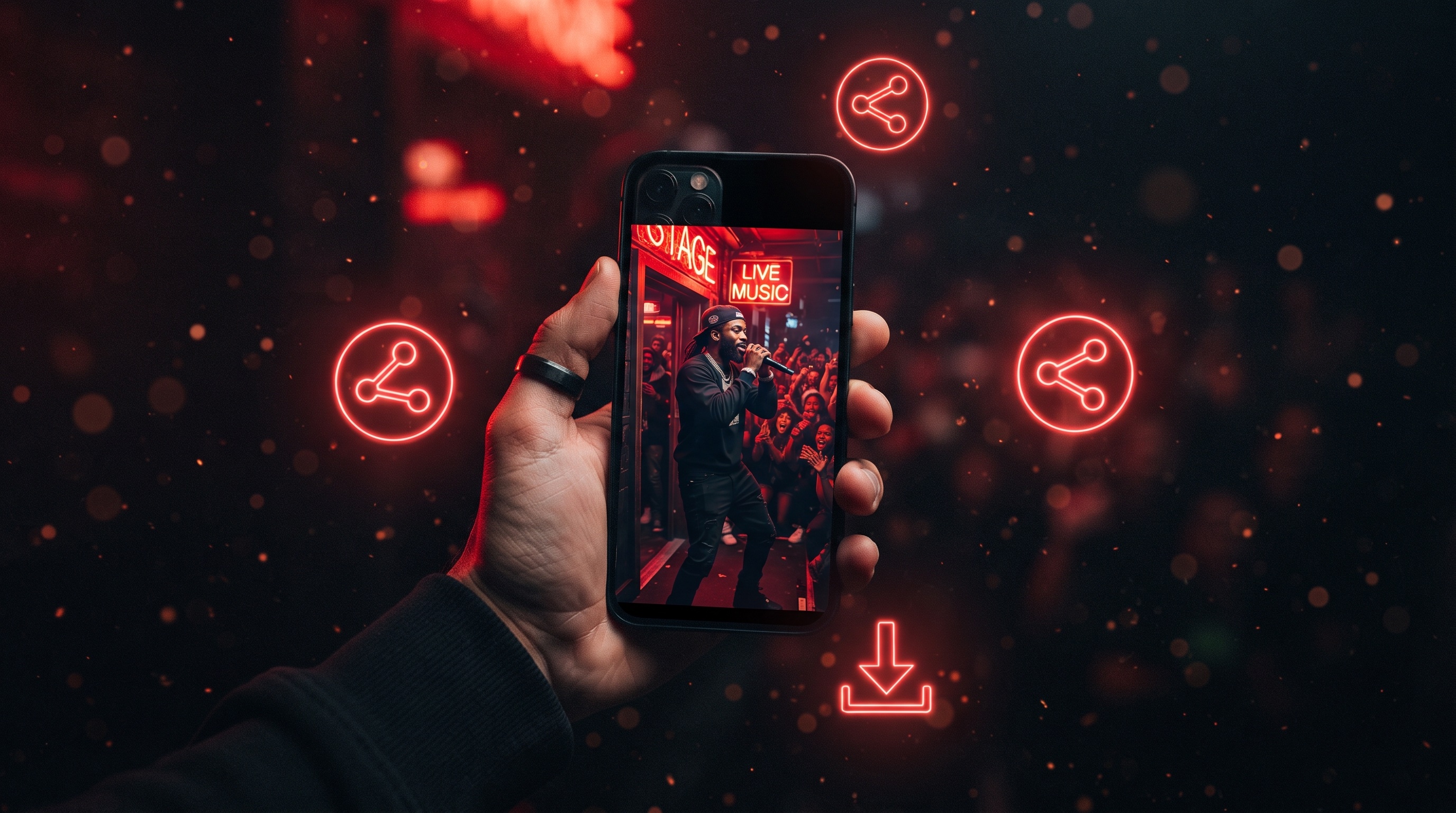
One habit worth picking up: download the file rather than relying on the cloud copy. Finished videos stay available in My Videos and on the share page, but the studio does not promise permanent archival, so the copy on your phone is the safe one.
Posting is the easy part: the 9:16 file is already in the native format for TikTok, Reels, and Shorts, so upload it like any other clip. One practical tip — post with the audio on. The beat is half of what makes people recognize the trend in the first second.
What every video ships with
The two examples above came from the same locked preset, and every generation gets the same specs:
| Spec | What you get |
|---|---|
| Duration | 15 seconds |
| Format | MP4, no watermark |
| Aspect ratio | 9:16 vertical |
| Resolution | HD or 2K |
| Audio | Original dembow beat and crowd atmosphere |
| Generation time | 5 to 10 minutes |
| Delivery | MP4 download, public share link, My Videos history |
Set expectations on the likeness before your first render: facial details can vary slightly between generations, which is normal for this kind of model. The scene, the motion, and the audio stay locked; the likeness lands close rather than pixel-perfect. In most clips it reads as you within the first second, and for a trend built on parody that is close enough.
Three routes to the same video
Search around and you will find three ways people make these clips. The trade-offs are worth knowing before you spend an evening on the wrong one.
A dedicated studio (this guide). The Bulin 47 AI studio ships the doorway as a preset — scene, motion reference, and audio all fixed. You supply one photo and nothing else. Results stay consistent from run to run because nothing variable is left to chance.
A general-purpose video model. Tools that take a text prompt plus a reference clip can build the same thing. You find the original clip, write a prompt describing the doorway, the red light, and the camera move, then check whether the output kept the beat and the framing. It works, and it is the right route if you want a different scene entirely — but expect a few re-rolls before the scene stops drifting. The full breakdown is in our guide to the trend.
A template app. Some apps wrap the trend in a one-tap template. Before committing time to one, check three things: whether the export is watermark-free, whether the output keeps the original dembow audio, and what resolution you actually get. The audio matters most — it is the first thing viewers recognize.
If the goal is this specific clip, the dedicated route is the shortest path to a postable file. If you want your own scene later, a general model is the flexible tool to learn.
Six mistakes that ruin a Bulin 47 AI video
- A dark or blurry photo. The model cannot invent detail your photo does not contain. If the face is soft, the video face will be softer.
- Sunglasses or a covered face. The generation has nothing to build a likeness from. Save the shades for the doorway — your video self gets to wear them.
- Cropping to just a face. Head-only crops give the model less to work with; a waist-up or full-body shot consistently blends better into the scene.
- Impatient re-rolls. A render takes 5 to 10 minutes, and each new upload starts its own task in the queue, so re-submitting does not speed anything up.
- Using a photo you do not have the right to use. Keep it to yourself, consenting friends, and pets. The platform is built for personal parody, not impersonation.
- Expecting a different scene. The doorway is the product. If what you want is your own location, storyline, or a different song, that is a job for a general video model — see the routes above.
What it costs
No subscription — you buy credits once and spend them one per video:
| Pack | Videos | Price | Per video |
|---|---|---|---|
| Starter | 1 | $9.90 | $9.90 |
| 3-pack | 3 | $19.90 | $6.63 |
| 5-pack | 5 | $29.90 | $5.98 |
Credits never expire, so there is no penalty for buying a pack and spacing out your attempts. If a generation is confirmed as failed, the credits it deducted are returned automatically. Which pack to pick: the Starter pack covers a single try, while the 3-pack makes sense the moment you can picture a second attempt — a better photo, a different outfit, one for a friend — and drops the per-video price to $6.63. Full details are on the pricing page.
FAQ
How long does it take to make a Bulin 47 AI video?
About two minutes of your time and 5 to 10 minutes of render time. The studio shows live queue progress, and the finished video lands in My Videos.
How much does it cost to make a Bulin 47 AI video?
Credit packs are one-time purchases: $9.90 for 1 video, $19.90 for 3, $29.90 for 5. That works out to $5.98 to $9.90 per video, with no recurring charge. Failed generations return their credits.
Can I make a Bulin 47 AI video for free?
There is no free tier. Every video costs one credit, and packs start at $9.90. Credits never expire, and confirmed failed generations return their credits automatically.
What kind of photo works best?
Clear, well-lit, face fully visible and front-facing. Waist-up or full-body framing works best — the outfit in the photo is the outfit in the video. Blur, sunglasses, and heavy shadows are the main things to avoid, and a solo shot beats a group photo. Pet photos work too.
Does the video include the original dembow audio?
Yes. The dembow beat and street atmosphere from the original freestyle are part of every generation, so the clip is ready to post with sound.
Can I post the video on TikTok, Reels, or Shorts?
Yes. You download a watermark-free 9:16 MP4 and upload it like any other vertical video. There is no built-in Bulin 47 filter on TikTok itself — the clips are made on the web first.
Is it safe to upload your photo?
Photos go to encrypted Cloudflare storage and are used to render your video — the service does not sell facial images or use them to train third-party AI models. Upload only photos you own or have permission to use, download your MP4 after rendering since nothing is kept as a permanent archive, and email support anytime for full deletion.
What happens if my video fails or the face looks off?
Confirmed failures automatically return the credits they deducted, so a retry costs nothing. A completed video always consumes its credit even if the likeness is not perfect, so lead with your sharpest photo.
Make your first one tonight
The whole process is one photo and a couple of clicks: open the studio, upload your shot, and let the render run while you do something else. If it is your first time, start with a single credit pack — and if you want a second opinion on your photo before spending a credit, the Step 1 checklist above is the difference between a passable clip and one your friends ask about.